User guide
EO Mentorship, Explained
Everything the platform does, for every role: how members find a mentor and work together, how chairs and regional leads look after their programmes, and how admins run the whole.
Hosted by EO Berlin, open to all chapters.
The whole guide15 chapters · about 30 min
Start with these four:
Contents1. What the platform does
Start here · 01
What the Platform Does
EO Mentorship runs a complete mentoring programme in one place: from the first sign-in, through matching and a signed agreement, to ten to twelve months of structured sessions and a celebrated close. It is hosted by EO Berlin and open to members of all chapters.
Step 1
Sign in with EO
Your EO account is your login. No new password.
Step 2
Set up in four steps
Confirm your details, pick mentee, mentor or both, and join a programme.
Step 3
Find your match
Mentees shortlist up to five mentors. Each is asked in turn until one says yes.
Step 4
Sign the agreement
Both sign the mentorship agreement, including the confidentiality terms.
Step 5
Meet and grow
Sessions with agendas, SMART goals, action items, private notes and messages.
Step 6
Close and celebrate
Confirm the closure, decide what comes next, and download your certificate.
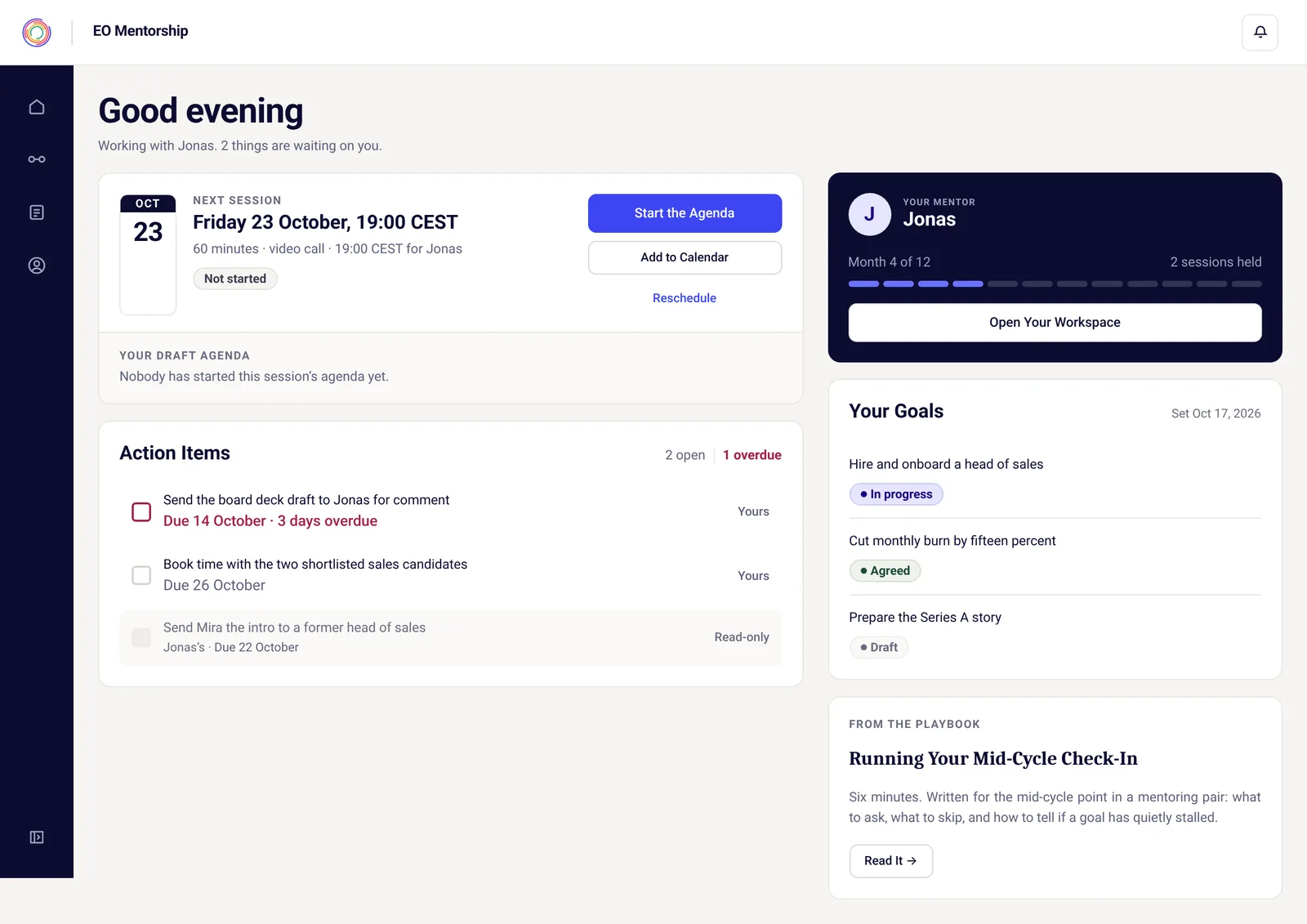
Built around the pair
A private workspace with sessions, agendas, goals, actions, notes and messages.Confidential by design
You choose who reads each note: you and your partner, or only you. Chairs see that a note exists, never what it says.Guided at every step
Getting-started checklists, short tips on each page and the EO Playbook for every role.Chairs see what needs them
A cockpit ranks the pairs that need attention, with nightly health and one-click nudges.Oversight without names
Regional and organisation reports count activity per chapter and region, with small groups hidden.Works on any screen
Laptop or phone, English or German, in your own timezone.
Who does what · 02
Roles and Areas
Everyone signs in to the same platform and lands on their home page. What you can do beyond that depends on the roles you hold. Mentee and mentor roles add tools to your menu; chair, regional and admin roles open whole areas. Pick a role to see what it opens.
Member
- How you get it
- Every person who signs in with EO
- What it adds
- Home, Playbook, Resources, Settings, and Circles if you are in one
Areas you can open
Member area
/home
Find a mentor, answer requests, run your pair, Playbook.
Chapter chair area (not opened)
/manage
Programmes, applications, pairing, health, circles, handover.
Regional area (not opened)
/regions
Every chapter side by side, escalations, safeguarding.
Admin console (not opened)
/admin
People, roles, settings, texts, library, records, health.
Mentee
- How you get it
- Automatically, once your mentee application is approved (in most programmes, the moment you join)
- What it adds
- Find a mentor, Requests and My mentors
Areas you can open
Member area
/home
Find a mentor, answer requests, run your pair, Playbook.
Chapter chair area (not opened)
/manage
Programmes, applications, pairing, health, circles, handover.
Regional area (not opened)
/regions
Every chapter side by side, escalations, safeguarding.
Admin console (not opened)
/admin
People, roles, settings, texts, library, records, health.
Mentor
- How you get it
- Automatically, once your mentor application is approved (mentors are approved on joining)
- What it adds
- Requests, My availability and My Pairs
Areas you can open
Member area
/home
Find a mentor, answer requests, run your pair, Playbook.
Chapter chair area (not opened)
/manage
Programmes, applications, pairing, health, circles, handover.
Regional area (not opened)
/regions
Every chapter side by side, escalations, safeguarding.
Admin console (not opened)
/admin
People, roles, settings, texts, library, records, health.
Chapter Chair
- How you get it
- Granted by a global admin (up to two per chapter, to allow a handover)
- What it adds
- The chapter chair area
Areas you can open
Member area
/home
Find a mentor, answer requests, run your pair, Playbook.
Chapter chair area
/manage
Programmes, applications, pairing, health, circles, handover.
Regional area (not opened)
/regions
Every chapter side by side, escalations, safeguarding.
Admin console (not opened)
/admin
People, roles, settings, texts, library, records, health.
Programme Manager
- How you get it
- Granted by a global admin
- What it adds
- The chapter chair area for their programmes
Areas you can open
Member area
/home
Find a mentor, answer requests, run your pair, Playbook.
Chapter chair area
/manage
Programmes, applications, pairing, health, circles, handover.
Regional area (not opened)
/regions
Every chapter side by side, escalations, safeguarding.
Admin console (not opened)
/admin
People, roles, settings, texts, library, records, health.
Regional Lead
- How you get it
- Granted by a global admin (up to three per region)
- What it adds
- The regional area, and the chair area for every chapter in the region
Areas you can open
Member area
/home
Find a mentor, answer requests, run your pair, Playbook.
Chapter chair area
/manage
Programmes, applications, pairing, health, circles, handover.
Regional area
/regions
Every chapter side by side, escalations, safeguarding.
Admin console (not opened)
/admin
People, roles, settings, texts, library, records, health.
Global Staff
- How you get it
- Automatically when EO reports you as EO Global Staff, or granted by a global admin
- What it adds
- Reports: organisation-wide activity per chapter and region, with no names
Areas you can open
Member area
/home
Find a mentor, answer requests, run your pair, Playbook.
Chapter chair area (not opened)
/manage
Programmes, applications, pairing, health, circles, handover.
Regional area (not opened)
/regions
Every chapter side by side, escalations, safeguarding.
Admin console (not opened)
/admin
People, roles, settings, texts, library, records, health.
Global Admin
- How you get it
- Granted by a super admin
- What it adds
- The admin console, and the regional and chair areas
Areas you can open
Member area
/home
Find a mentor, answer requests, run your pair, Playbook.
Chapter chair area
/manage
Programmes, applications, pairing, health, circles, handover.
Regional area
/regions
Every chapter side by side, escalations, safeguarding.
Admin console
/admin
People, roles, settings, texts, library, records, health.
President or Chapter Staff
- How you get it
- Granted by a global admin, or for staff automatically from EO
- What it adds
- A label and their own Playbook track; otherwise member access
Areas you can open
Member area
/home
Find a mentor, answer requests, run your pair, Playbook.
Chapter chair area (not opened)
/manage
Programmes, applications, pairing, health, circles, handover.
Regional area (not opened)
/regions
Every chapter side by side, escalations, safeguarding.
Admin console (not opened)
/admin
People, roles, settings, texts, library, records, health.
Switching Between Areas
If you hold more than one area, Switch role in the top bar moves you between them, showing only the ones you can open. Every area has the notification bell, a ? button that replays the page's tips, and the account menu with Report a concern and Sign out. Opening an area without the role gives a plain "page not found".
EO Membership Types
Your EO membership type shows as a small label next to your name (for example ACC, SLP, Key executive or Alumni). It is information only and grants nothing. An Accelerator mentee only sees mentors who said they are happy to mentor Accelerator participants.
Access · 03
Signing In
You sign in with your EO account through EO single sign-on. There is no separate password and no registration form: your first EO sign-in creates your platform account.
Step 1: Open the platform
Go to the platform’s home page,/. The first screen is the sign-in screen.Step 2: Continue with EO SSO
Sign in on EO’s own page with your EO credentials.Step 3: Land where you were going
Your home page, or the page you were trying to open.
What the Platform Takes from EO
Your name, email, chapter and membership type, refreshed at every sign-in. Change your name or email with EO. Former members, former chapter staff and former global staff are not admitted; if that is wrong, the sign-in page says to contact your chapter.
Staying Signed In
Your session renews while you use the platform. Sign out signs out this browser only. If sign-in fails, the page names the reason with a Try again button, and Having trouble signing in? opens a help page.
Onboarding · 04
Your First Steps
After your first sign-in, four short steps take you from your EO details to joining a mentoring programme. A progress bar shows where you are, and you can go back at any point.
Step 1
Check your details
See what EO sent, set the name you want to be called, confirm your timezone.Step 2
Choose how you take part
Find a mentor, Be a mentor, or Both. You can change this later.Step 3
About you
Optional: company, LinkedIn, a short intro, country, city.Step 4
Join EO Mentoring
Pick the programme, accept the confidentiality terms and, as a mentee, commit to meeting about once a month.
Help While You Find Your Way
Welcome bar
One sentence about your role. Close it and it stays closed.Getting-started checklist
“Your Mentorship in Four Steps” for members. Gone once every item is done.Tips
Up to two per page. The ? button shows them again.Who sees this
Side panels that say who reads what you enter, and what happens next.
Your Profile
Settings holds your account. Name and email come from EO and are read-only. Upload a picture (JPEG, PNG or WebP up to 5 MB, seen only by your mentoring partner and your programme's chairs), and set your preferred name, language (English or Deutsch), timezone and "About you".
Moving from Together · 05
Coming from Together
The Together platform closes on 14 November 2026 and EO Mentoring takes its place. Your Together mentoring history comes with you, and the platform recognises you at your first EO sign-in. This is what happens the first time you log in.
Step 1
Sign in with EO
Continue with EO SSO and your EO credentials. Your Together password is not used.Step 2
Set up your account
The four first steps above: your details, mentee, mentor or both, and join EO Mentoring.Step 3
Check your Together history
Confirm each pairing, or say in a few words what is not right.Step 4
Carry on here
A pairing still running continues here. Mentors say whether they still mentor.
How You Are Recognised
Your Together record is linked to your account by your EO member id, or else by your email address. It is never linked on a guess: if two Together records could fit, an administrator links the right one by hand. If the history page says no history was found for you, tell your chapter and an administrator can link it.
Check Your Mentoring History
Once you have joined EO Mentoring, your home page takes you to Your mentoring history (/together-history) while a pairing waits for your answer. Each pairing shows who it was with, the months it ran and the sessions held. Choose Yes, that's right, or Something's not right and write what is wrong, for example "It ended already in March 2024". An administrator reads it. With two or more past pairings, one button confirms them all. Group mentoring from Together is listed too.
The page waits until you have joined so that a pairing still running can continue on the programme place you just took. It stays open afterwards as your record.
Your Pairing Is Still Running
When you and your partner have both confirmed it, or an administrator has accepted it, the pairing continues here as an active pair, with the sessions you held in Together. You do not go through matching again. If your partner has not signed in yet, the pairing says so and continues once they have signed in and confirmed it too.
You Mentored on Together
Before your first sign-in, mentees can already find you in Find a mentor, under "From Together, not signed in yet", with your Together mentor profile, and add you to their shortlist. Their request is emailed to your Together address and waits 72 hours for you to sign in and say yes; after that, the next mentor on their shortlist is asked.
After you sign in, your home page asks Are you still mentoring? and lists the mentees waiting for you.
- Yes, I’m still mentoring
- The waiting requests move to your Requests. If you have not joined as a mentor yet, finish joining first; they move once you have.
- No, take me off the list
- Mentees can no longer request you, and the mentees who asked are told.
From your first sign-in, mentees find you through your mentor profile here, not your Together one. Complete it from your home page or /enrol: your business details, how many mentees, the topics you mentor on, your hands-on experience and when you can meet.
You Were a Mentee on Together
Your past pairings stay as your history. To find a mentor here, join as a mentee and complete What you want help with: your goals and at least two areas where you would like help. These are your needs. Find a mentor shows how many of them each mentor covers, and a match score once you have named three. Mentors from Together who have not signed in yet are listed too, and go on your shortlist like anyone else.
Add Your LinkedIn
Your Together profile is not copied into your profile here. Add your LinkedIn address under About you when you set up, or later under Settings. A mentor's LinkedIn is shown on their card in Find a mentor and on their profile; only a linkedin.com address is shown.
For mentees · 06
Getting a Mentor and Driving the Relationship
You set the goals and lead; your mentor shares what they have lived. Join a programme, complete your mentoring profile, choose a mentor, sign the agreement, then meet regularly.
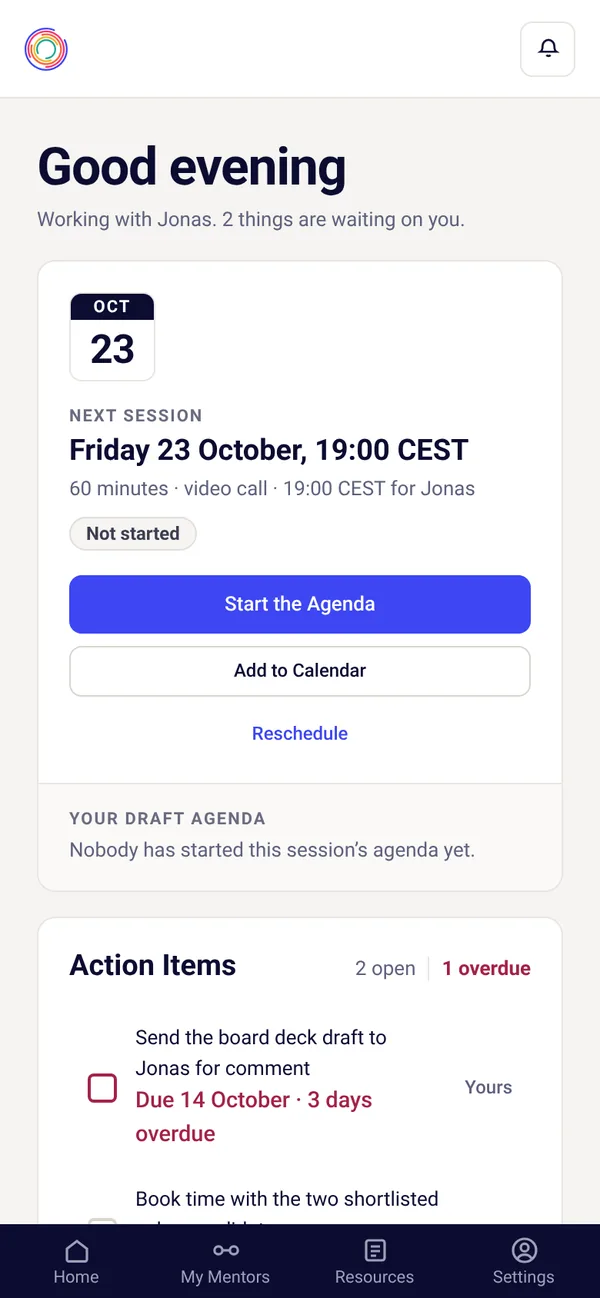
Your Home Page Follows Your Stage
Not joined yet
Joined, no mentor yet
Matched
Several mentors
Complete Your Mentoring Profile
Open it from your home page or /enrol. Mentors are matched to you on what you want help with: your goals and the areas you pick. Your languages and the times you can meet decide who can be matched with you at all.
- 1
Your goals
One to five, with topics and optional SMART fields - 2
Where you’d like help
At least two areas - 3
About you
Your languages. Industry, stage, revenue, team, years and meeting style are optional - 4
When you can meet
Two or more weekly windows in your timezone - 5
A few questions
The programme’s own, if it has any
Choose Your Mentor
Open Find a mentor and filter by topic, open slots, timezone (within three hours of yours), chapter or industry. Each card shows the mentor's chapter, bio, topics, a "Training completed" badge when earned, the hours you have in common each week and "Why this mentor". Shortlist up to five with Add to shortlist, put them in order with Move up and Move down in Your shortlist, and send.
The best match comes first. Once you have named at least three needs, each card shows a match score: the share of your needs that the mentor's topics and experience cover, with "Covers N of your M needs" beside it. Your needs are your top three goals, up to three areas where you would like help and, if you ask for them, a mentor who knows your industry or has been where you are. How is this worked out? on the card explains it, and Match score from and Match score up to narrow the list. A mentor's profile also shows their LinkedIn link and their current EO positions. Mentors from Together who have not signed in yet follow in a list of their own, with a Sort by choice.
Try it · how the shortlist works
You ranked four mentors. The platform asks the first one.
- Mentor 1Asked now
- Mentor 2Waiting in your order
- Mentor 3Waiting in your order
- Mentor 4Waiting in your order
A mentor has 72 hours to answer. Follow it all in Requests, and withdraw at any time. A full mentor can be waitlisted; a waitlist holds no place.
The five places on your shortlist are for mentors who are waiting or asked. A mentor who has answered no longer takes a place, so you can add more at any time.
Follow every request on the Requests page: Pending, Accepted, Declined, Withdrawn or Expired, with Withdraw request at any time. A mentor who is full can be waitlisted with Join waitlist; a waitlist holds no place and has no deadline. You can want one to three mentors at once, set under Settings, Mentoring.
Sign the Agreement
Once both sides accept, the platform generates your agreement: meeting rhythm, session length, how you meet, the planned end date and the confidentiality terms. Tick the confirmation and choose Sign the agreement. The pair becomes active when both have signed; after 14 days your chair follows up.
For mentors · 07
Sharing Your Experience
You share your experience and ask good questions; the mentee owns their decisions. Mentors are approved as soon as they join, and decide how many mentees they take on.
- 1
Business details
The same matching details mentees give - 2
How many mentees
One to three, and whether other chapters or regions - 3
Topics and experience
At least three of each, shown on your card - 4
When you can meet
At least two weekly windows
I'm also happy to mentor EO Accelerator participants is on by default, so Accelerator mentees can find you. Untick it under Settings if you would rather not.
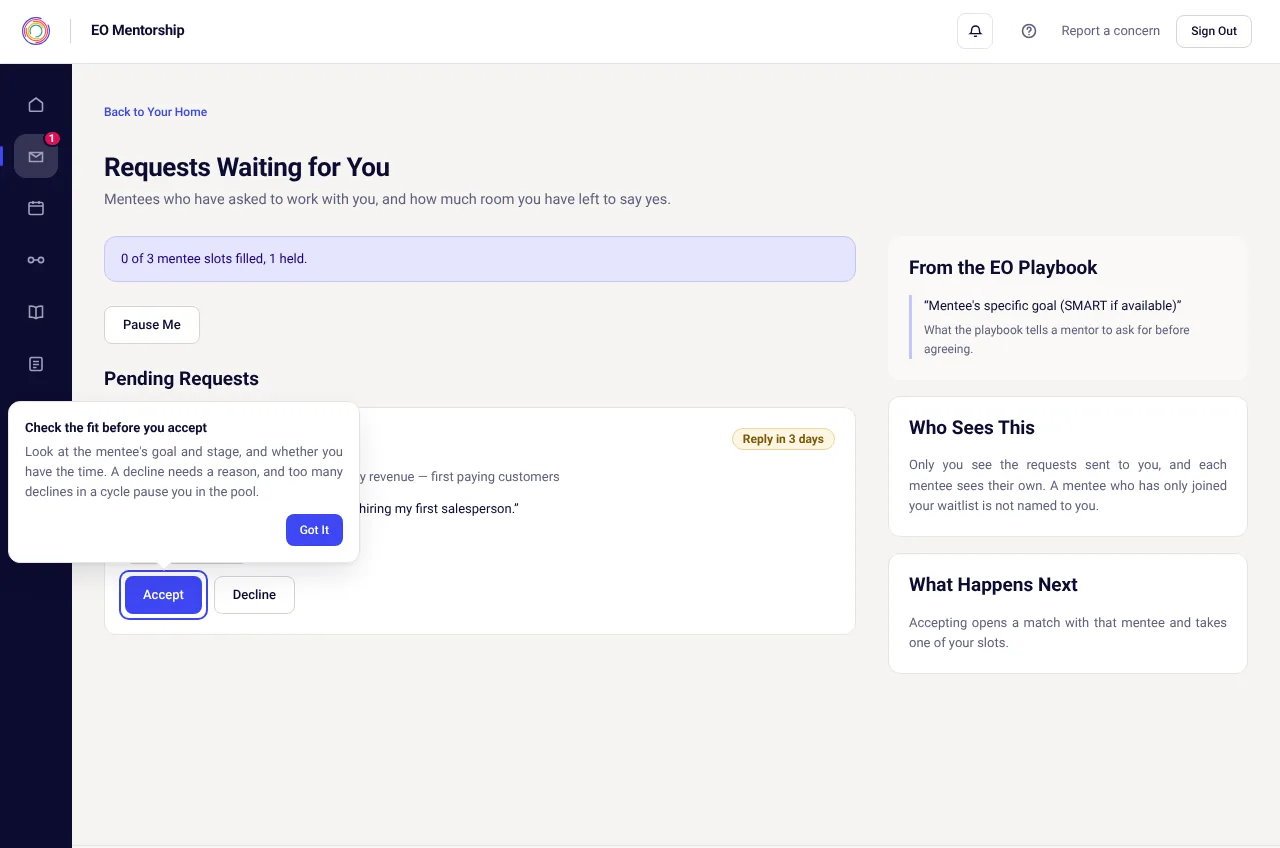
Answer Requests
Requests lists who has asked for you, with industry, stage, note and reply deadline. Read the request shows years in business, timezone, rhythm, languages and bio. You get an email and a notification when your time to answer a request starts, and on a request with a few days to answer, a reminder about a day before it closes.
Accept
Creates the pair and leads to the agreement. When your slots fill, other open requests are released.Decline
Asks why: no capacity, outside what you can help with, timing, conflict of interest or another reason. Declining or letting requests expire too often within 14 days pauses you automatically.My availability
Pause me stops new requests; Show me in the pool brings you back. You see how many are waiting, not who.
For every pair · 08
The Pair Workspace
Each pair has a private workspace with seven tabs. Mentee and mentor use the same one; Sessions, Goals and Actions open once the agreement is signed.
Overview
Sessions
Opens after signingGoals
Opens after signing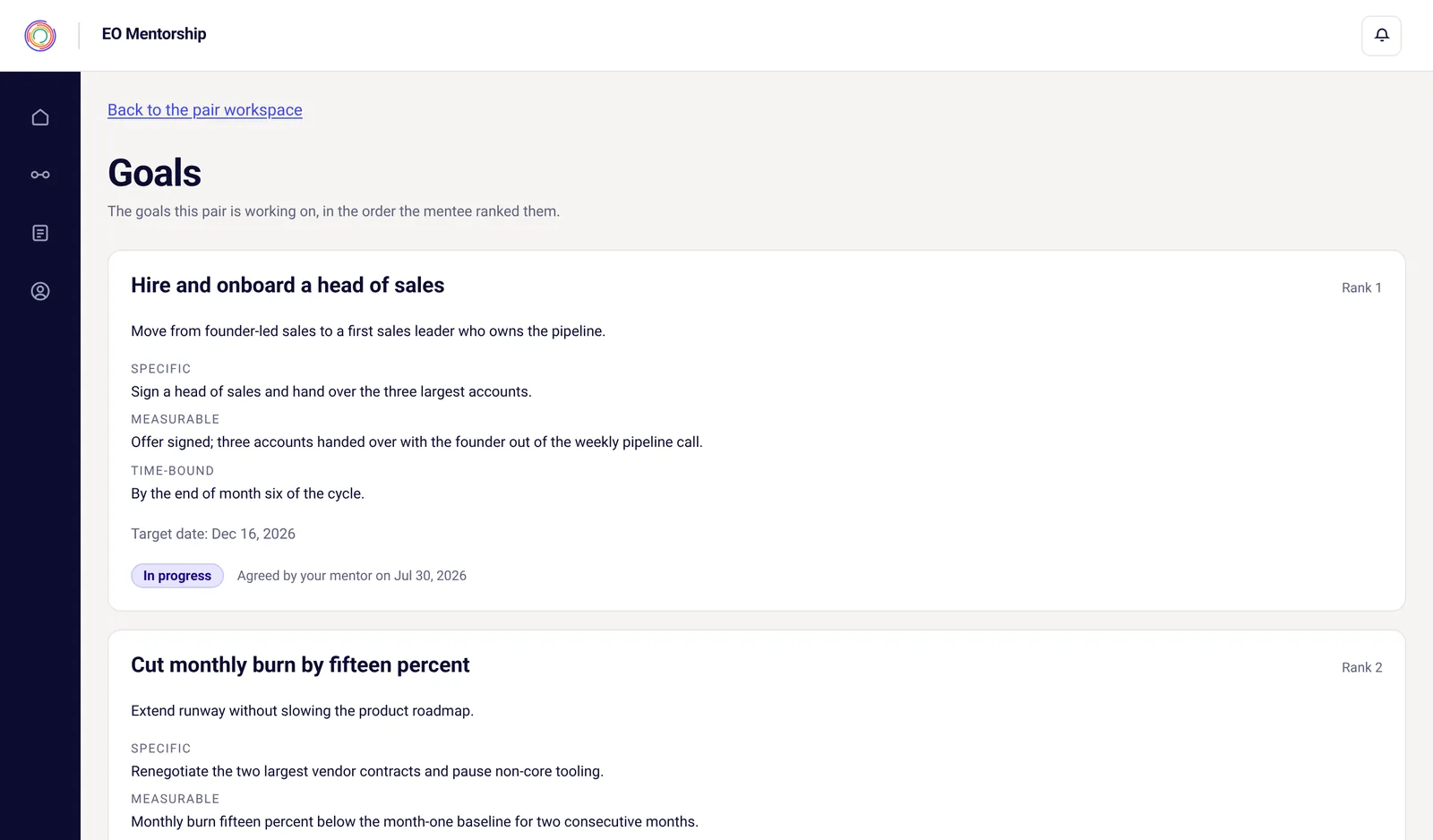
Actions
Opens after signingNotes
Messages
Settings
Ending Well
A chair or regional lead begins the close. Each of you confirms with a reason and an optional reflection, then chooses End well or Continue as peers; choices are revealed once both have answered. View your certificate opens a printable certificate; /certificates lists all of yours.
Surveys and Circles
Mid-point and exit surveys open from the overview. Your partner never sees your answers; chairs see totals once at least five people have answered. A chair can add you to a circle: one mentor and two to six mentees with their own sessions and group thread.
The Defaults
10–12 mo
Length of a mentorship
Set by admins, for new programmes
72 h
Reply window for a request
Set by the platform
7 days
Offer expiry
Set by programme
14 days
Agreement signing window
Set by programme
90 days
Longest pause
Set by programme
1–3
Mentees per mentor, mentors per mentee
Set by you, within the programme limit
For chapter chairs · 09
Running Your Chapter's Programme
You welcome applicants, make or confirm pairs and step in when a pair struggles. Choose Chapter chair in the role switcher. Programme managers, regional leads and global admins can open it too, each for the places they look after.
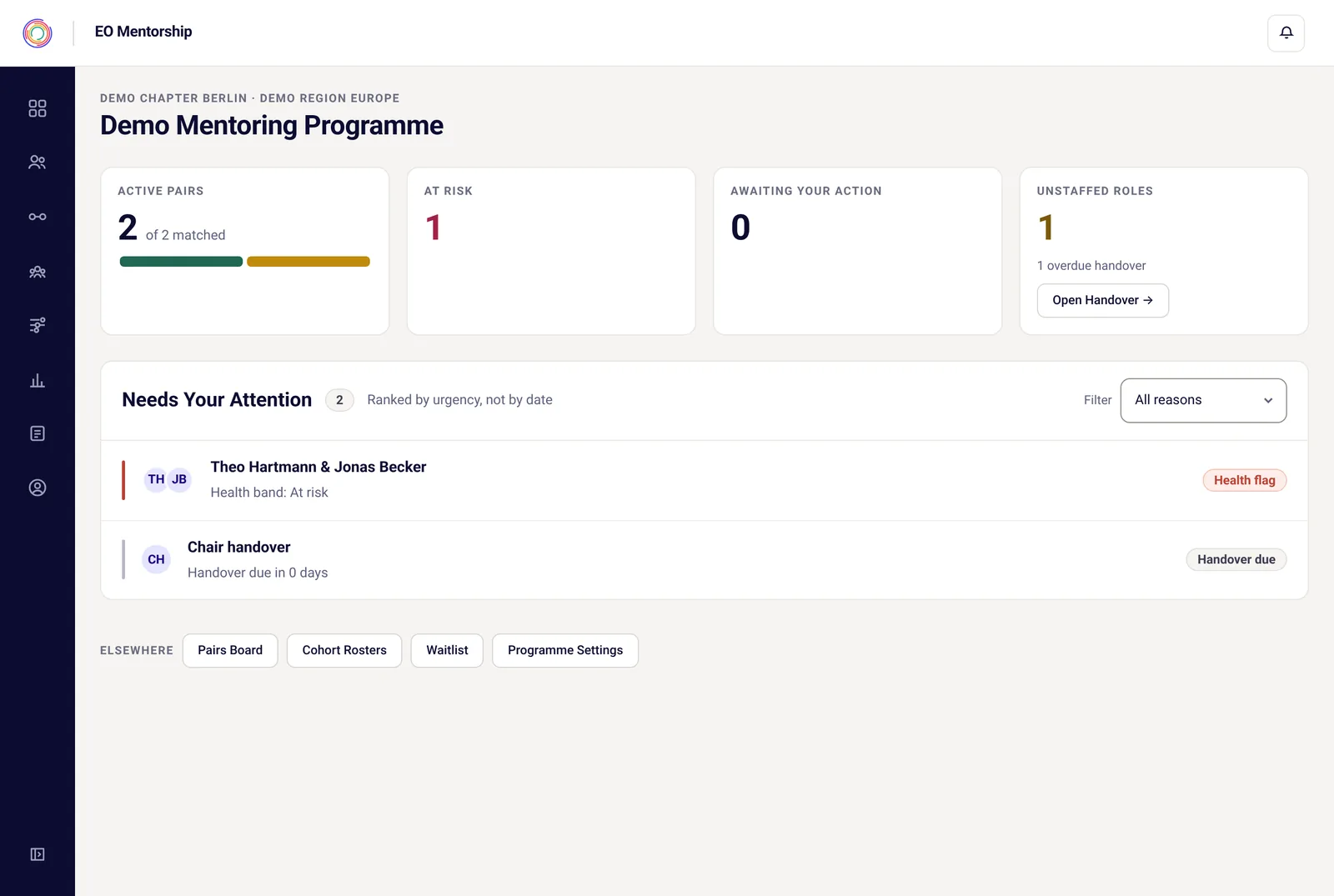
The Cockpit, Your Daily Start
Cohort health
Active pairs, pairs at risk, items awaiting your action, and chapters without a chair or with an overdue handover.Needs your attention
Ranked by urgency: a health flag, a gap in the meeting rhythm, an agenda due, a stalled agreement, a rematch request, someone unmatched, an application awaiting approval or a handover due.Nudge
On a flagged pair, send both people a reminder with an optional note, at most once a day per pair.Activity
Your chapter's figures for this or last quarter or year, with a CSV download.
Programmes Are Always Open
A programme has one running period, shown as "Always open", which the platform creates for you. Members apply at any time through the programme's application link, which you copy from the programme page and share. Under New program you set a name, a description members read when they apply, where it belongs (organisation, region or chapter), the format (in person in one chapter, or virtual across chapters) and a support contact. You can add up to 40 application questions of five types and choose who answers each one.
Applications
The enrolment list shows every applicant with a status, from Submitted through In screening, Pending match, Waitlisted and Matched. Open an applicant to see their answers and history; the buttons follow the status (Start screening, Approve, Waitlist, Reject, Close as unmatched), and every decision asks for a reason. In the current programmes most members are approved automatically when they join. The roster download never includes screening notes, application answers or email addresses, and each download is recorded.
Matching and the Pairs Board
Mentees choose their own mentor, and chairs can also pair people from Matching: propose a pair (only you see it), then release the offer to both. On a proposal you can accept it, swap the mentor, or reject it and keep both in the pool. The platform refuses a pair that breaks a rule. On the pairs board, cards move on their own as each pair progresses; Move offers the steps a chair can take from that column.
The rules a pair is checked against include a mentor with no free place, the programme's same-chapter rule, a do-not-match entry and a pair you are part of yourself.
Health bands
Every running pair gets a band, computed nightly from meeting rhythm, agendas and notes. A score never changes a pair by itself: the chair decides. Select a band.
At risk. Look at this pair this week.
From a pair's triage view: nudge it, pause and resume it, dissolve it, or request and withdraw a rematch.
Circles
Create a circle, add one mentor and two to six approved mentees, and start it. Chairs see who is in it and when it meets, never its messages.Programme settings
Pool scope, same-chapter rule, training requirement, mentees per mentor, rhythm, session length, offer expiry, signing window and pause cap.Reports
Sign-ups, matching, sessions and goals, pair health, outcomes and surveys, with CSV. Too-small figures show as "Not enough data yet".Chapter roster
Every active member of your chapter, with membership type, mentor role and training status.Group messages
Message a group, on the chapter roster, sends one in-app message to everyone in a chapter or programme you look after. Up to 3 a day and 5,000 people; it cannot be taken back.Activity reports
An email every Monday and on the 1st of the month with members, registrations, applications, pairs and sessions, each against the period before. Switch either off under Settings, Notifications.Handover
Hand the chapter to the next chair with a checklist (at-risk pairs, programmes, pending approvals, settings) and a briefing note.Bringing pairs across
Pairs that ran before the platform can be entered by hand, with a count sheet that must balance before the batch closes.
For regional leads · 10
Overseeing the Chapters in Your Region
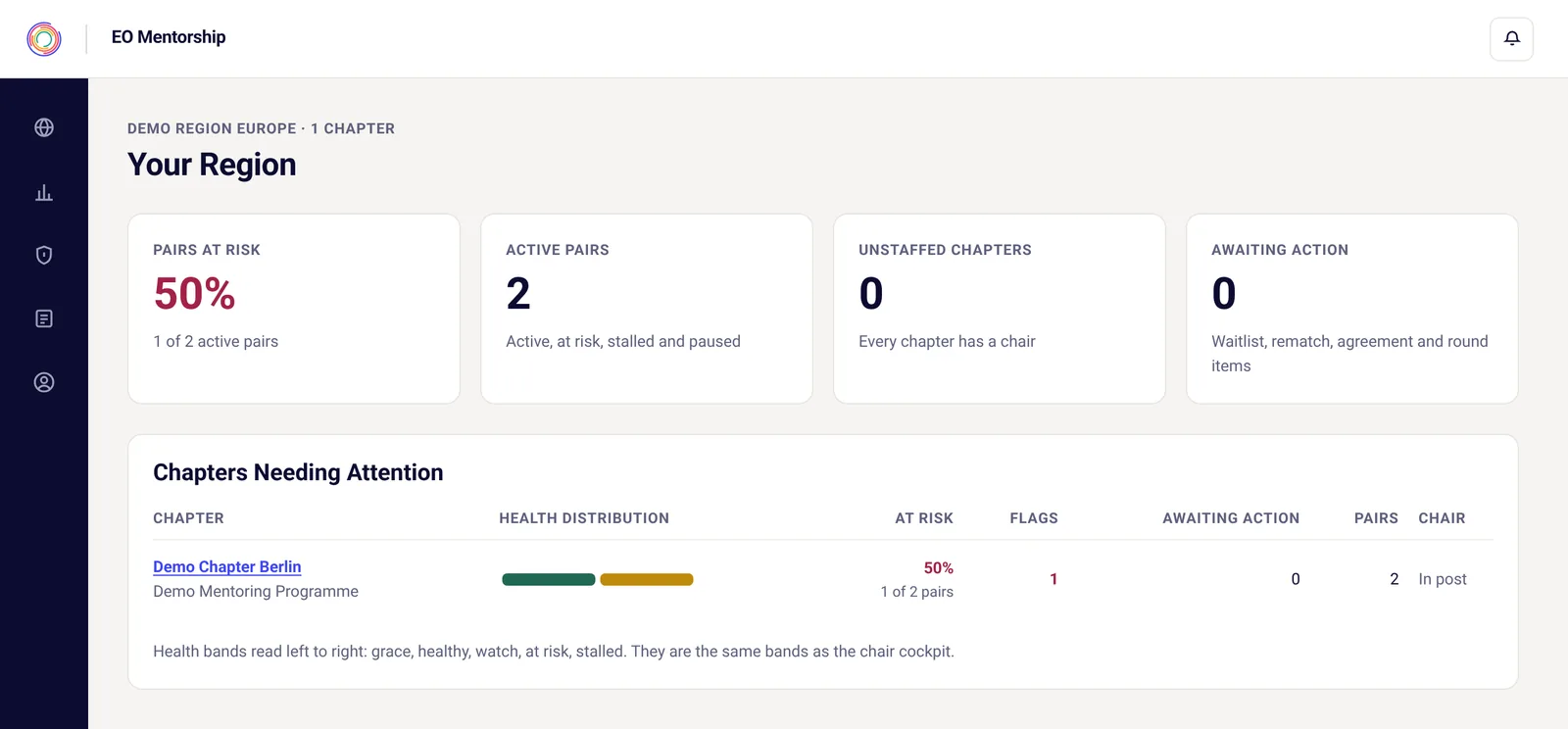
Spot the chapters and pairs that need support and follow up escalations. You can also open the chair area of any chapter in the region and act there as its chair would.
- Overview
- Pairs at risk, active pairs, unstaffed chapters and items awaiting action; what has been escalated to you; every chapter’s open items, most urgent first.
- Chapters
- Every chapter, including those without a programme or a chair, with CSV.
- Programmes
- Every programme with status, health, pairs and applications to review.
- Pairs
- Every pair with health, status, month, meetings held, last and next meeting, with CSV.
- People
- Applicants and enrolled members, filterable by stage, side and chapter, with CSV.
- Escalations
- Chapters without a chair, and pairs stalled 30 days or more. A chair is asked for an outcome within 14 days; after 30 the pair comes to you.
- Reports
- Every region you oversee side by side, plus activity by period, chapter and quarter.
Figures reflect chapter size, programme maturity and cohort mix. They are there to find chapters that need support, not to rank volunteer chairs.
Safeguarding Cases
Concerns sent with Report a concern come to regional leads and global admins. Acknowledge and take assigns a case to you and tells the reporter, if they gave their name. You see the category, the confidential description, the metadata of the pair's notes (never the text) and a trail of every action. You can pause the match (the pair sees an ordinary pause notice), suspend a mentor, record a note, escalate to EO, and close with an outcome.
For EO global staff · 11
Organisation-wide Reports
EO global staff get the Global staff role automatically at sign-in. It adds one menu item, Reports: activity figures for every chapter and region, with no names of people.
The ten activity measures
- 1: Members
- 2: New registrations
- 3: Imported members
- 4: Mentee applications
- 5: Mentor applications
- 6: Applications approved
- 7: Pairs started
- 8: Pairs running
- 9: Pairs completed
- 10: Pairs ended early
Counted per period (this or last quarter, this or last year). The same section appears in the chair cockpit, the regional area, the admin console and global staff reports. Tables by region, by chapter and quarter by quarter download as CSV.
For global admins · 12
The Admin Console
Where global admins look after people, roles, content and settings for the whole organisation. Before it opens the first time, an admin accepts the data protection undertaking.
People
Search everyone, set a directory status, correct a name, email or home chapter. Every change asks for a reason and lands in the audit log. Message a group reaches a chapter, a programme or everyone.EO directory
Each night the platform reads the EO member directory. EO positions suggest roles, such as a regional director as regional lead; an admin accepts or dismisses each one under Identity provider. Nothing is granted by itself.Roles
Grant, move and revoke chair, regional lead, programme manager, president, staff and global staff roles, each with a reason. Nobody grants themselves an elevated role.Organisation
Rename the organisation, create and rename regions and chapters, and set the chapter code EO uses at sign-in.Texts and terms
Agreement and legal terms, email templates with preview, page texts and notice banners. Each save is a restorable version.Library
Publish guides, worksheets, links, videos and templates to the organisation, a region or a chapter, for the audiences you choose.Matching and lists
The weights that order mentors for a mentee, and the topics and industries members choose from.Records
Analytics, an organisation-wide export without names, the audit log with CSV, data requests and member feedback.System health
Background jobs, email delivery with retry, retention with a dry run, and the sign-in provider status.Imports
Upload the Together export with a dry run first, or re-enter pairs from before the platform by hand, in batches with a reconciliation count sheet.
Safeguards built into the console
- Two-factor check. Granting, moving or revoking a role, moving a person between chapters and break-glass access each need a two-factor check from the last 15 minutes.
- Super admin. At most two people alone grant or remove global admin, publish material changes to legal terms, and can use View as: a read-only, 30-minute view with private content still hidden.
- Break-glass access is the only way anyone but its author reads a private note: a request with a written justification, approved by a different regional lead or admin, valid for at most 72 hours, with every step in the access log.
- Send e-mails and notifications. This switch holds every outgoing email and in-app notification while it is off.
Grant a Role
1 · GRANT
In/admin/roles: person, role, place, and a reason of at least 20 characters.2 · VERIFY IF ASKED
Older than 15 minutes? Verify with your authenticator and try again.3 · NEXT REFRESH
The person gets the area at their next session refresh; revoking works the same way.
For everyone · 13
Everyday Tools
These tools are there for every signed-in person, whatever their role.
The EO Playbook
Your Role’s Playbook, One Screen at a Time
Mentee, Mentor, Chair, Chapter president and Chapter staff tracks. Move with Continue and Back (arrow keys and swipe work too). One bar shows the whole playbook, a second the current chapter. Training chapters count toward mentor training.
Resources
Guides, worksheets, links, videos, templates and training steps published for you. Search, filter, read, open or download.Notifications
The bell lists offers, agreements, sessions, agendas, messages, decisions, nudges and survey invitations.Notification settings
In-app and email switches per kind; email immediately or as a daily or weekly digest. Session and calendar emails are never held back.Calendar feed
A private feed for Google Calendar, Outlook or Apple Calendar, with a new link or revoke at any time.Mentoring roles
Turn your mentee or mentor role on or off, finish joining, update matching details. Not during an active pair.Send feedback
In the footer of every page: an idea, something broken or something you like.
Trust · 14
Privacy and Safety
Mentoring only works when people can speak freely. What you write stays with the people it is meant for, and who can see it is stated on the page where you write it.
- Notes for you bothSees that it exists
- Notes only for youSees that it exists
- Pair messagesNo access
- Survey answersTotals only
- Report a concernNo access
Your matched mentor or mentee and your chapter chair can read your mentoring profile and goals; other members and other chapters cannot. An admin can read the text of a note only through approved, time-limited break-glass access, and you are told if that happens.
Report a Concern
In the account menu, for a worry about a person or a relationship: a boundary concern, harassment, safety or a conflict of interest. It goes to a regional lead and global administration, never to your chapter chair.
- 1
The kind of concern
For example harassment or safety - 2
Who it is about
One of your pairs, or anyone found by name - 3
Named or anonymous
Anonymous reports can’t be followed up - 4
What happened
20 characters or more, then Send
Your Data
A copy of your data
Ask under/settings/privacy; the file is kept for seven days.Deleting your data
An admin reviews and carries out the erasure. In a live pair you confirm first; the other person is told only that you left.Anything else
Corrections, restrictions or objections: privacy@eo-mentorship.com, your chair or an admin.
The privacy policy, confidentiality policy and subprocessors are public.
Reference · 15
Glossary
The words the platform uses, in one place.
- EO Berlin
- The EO chapter that hosts EO Mentorship. Members of all chapters can take part.
- Programme
- A mentoring offer run by a chapter, a region or the organisation, with its own questions and settings. Always open for applications.
- Enrolment
- Your place in a programme as a mentee or a mentor.
- Together
- The programme’s previous platform, closing on 14 November 2026. Its mentoring history moved here.
- Pool
- The mentors a mentee can browse and request.
- Shortlist
- Up to five mentors a mentee ranks; they are asked one at a time.
- Offer
- A pair proposed by a chair, which both people must accept.
- Pair
- One mentee and one mentor working together, from offer to completion.
- Agreement
- The mentorship agreement both people sign before the pair becomes active.
- Circle
- A group of one mentor and two to six mentees.
- Health band
- The nightly reading of a pair: Grace period, Healthy, Watch, At risk or Stalled.
- Nudge
- A reminder a chair sends to both people in a pair.
- Break-glass
- An approved, logged, time-limited permission for an admin to read a private note.
- View as
- A super admin’s read-only, 30-minute view of the platform as another person sees it.
Screenshots show fictional demo data. The guide describes the platform as it is today.